

What you’ll learn
- How to deploy an Instant Cluster with PyTorch
- How to initialize a distributed PyTorch environment using Runpod’s pre-configured environment variables
- How to launch multi-node training with
torchrun - How local and global ranks map to GPUs across your cluster
Requirements
- A Runpod account with sufficient credits for a multi-node cluster
- Basic familiarity with PyTorch and distributed training concepts
Step 1: Deploy an Instant Cluster
- Open the Instant Clusters page on the Runpod web interface.
- Click Create Cluster.
- Use the UI to name and configure your Cluster. For this walkthrough, keep Pod Count at 2 and select the option for 16x H100 SXM GPUs. Keep the Pod Template at its default setting (Runpod PyTorch).
- Click Deploy Cluster. You should be redirected to the Instant Clusters page after a few seconds.
Step 2: Clone the PyTorch demo into each Pod
- Click your cluster to expand the list of Pods.
-
Click on a Pod, for example
CLUSTERNAME-pod-0, to expand the Pod. - Click Connect, then click Web Terminal.
-
In the terminal that opens, run this command to clone a basic
main.pyfile into the Pod’s main directory:
Step 3: Examine the main.py file
Let’s look at the code in ourmain.py file:
main.py
main() function prints the local and global rank for each GPU process (this is also where you can add your own code).
Instant Cluster environment variables
Instant Cluster environment variables
PyTorch assigns
For a complete list of environment variables, see the configuration reference.
LOCAL_RANK dynamically to each process. All other environment variables are set automatically by Runpod when you deploy your cluster:| Variable | Description |
|---|---|
MASTER_ADDR / PRIMARY_ADDR | Address of the primary node for process coordination |
MASTER_PORT / PRIMARY_PORT | Port on the primary node |
NUM_NODES | Number of nodes in your cluster |
NUM_TRAINERS | Number of GPUs per node |
NODE_RANK | This node’s rank in the cluster (0 for primary) |
WORLD_SIZE | Total GPUs across all nodes |
Step 4: Start the PyTorch process on each Pod
Run this command in the web terminal of each Pod to start the PyTorch process:launcher.sh
main.py processes per node (one per GPU in the Pod).
NCCL network configuration details
NCCL network configuration details
The
NCCL_SOCKET_IFNAME=ens1 setting tells NCCL to use the high-speed internal network interface (ens1) for GPU-to-GPU communication between nodes. Instant Clusters provide up to 8 high-bandwidth interfaces (ens1-ens8) for inter-node traffic, separate from eth0 which handles external internet traffic.The NCCL_DEBUG=INFO setting enables detailed logging, which is helpful for troubleshooting communication issues. For more information on NCCL configuration and troubleshooting, see the configuration reference.Expected output
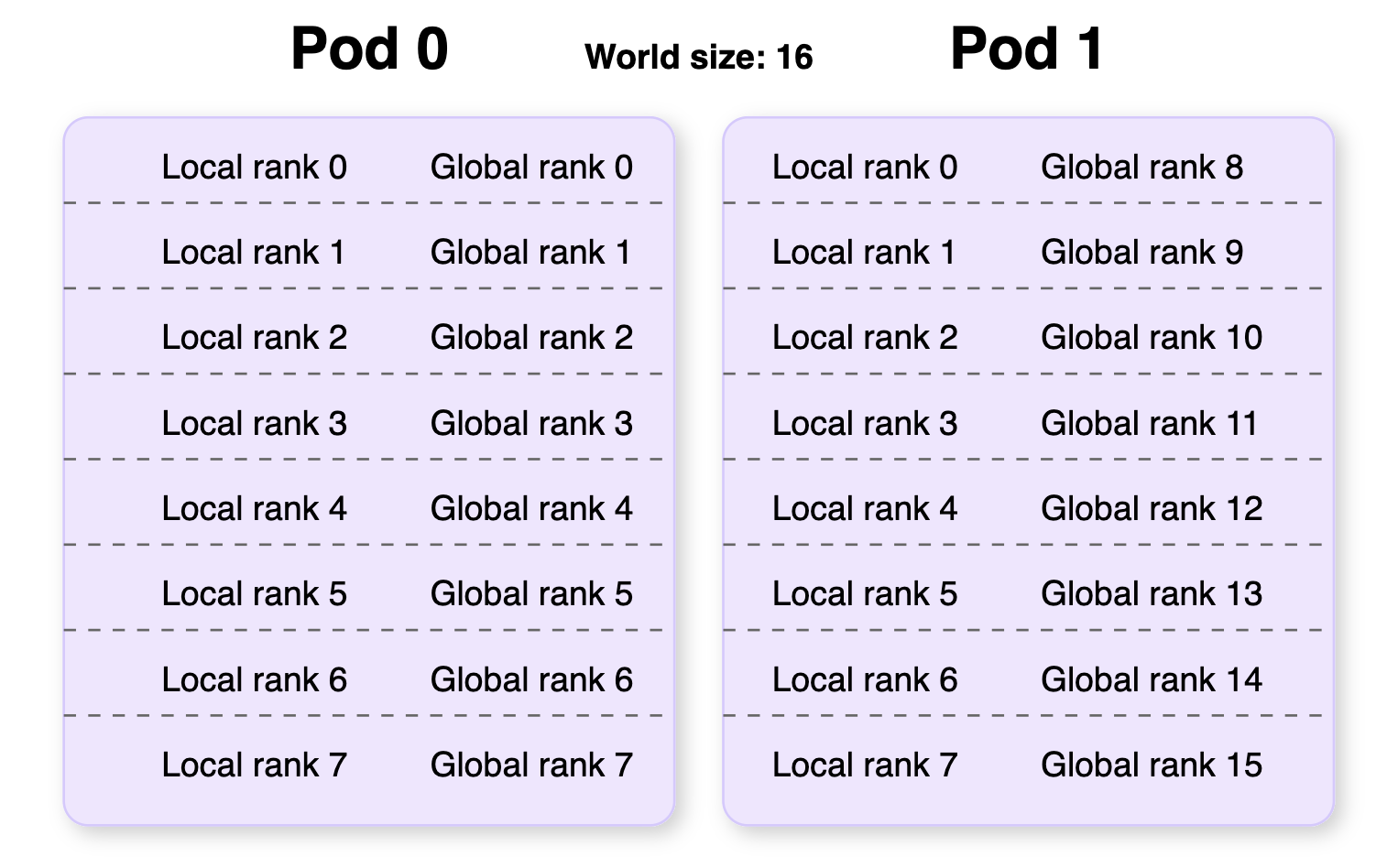
After running the command on the last Pod, you should see output similar to this:0 to WORLD_SIZE-1 (WORLD_SIZE = the total number of GPUs in the cluster). In our example there are two Pods of eight GPUs, so the global rank spans from 0-15. The second number is the local rank, which defines the order of GPUs within a single Pod (0-7 for this example).
The specific number and order of ranks may be different in your terminal, and the global ranks listed will be different for each Pod.
This diagram illustrates how local and global ranks are distributed across multiple Pods:
Step 5: Clean up
If you no longer need your cluster, make sure you return to the Instant Clusters page and delete your cluster to avoid incurring extra charges.Next steps
Now that you’ve successfully deployed and tested a PyTorch distributed application on an Instant Cluster, you can:- Adapt your own PyTorch code to run on the cluster by modifying the distributed initialization in your scripts.
- Scale your training by adjusting the number of Pods in your cluster to handle larger models or datasets.
- Try different frameworks like Axolotl for fine-tuning large language models.
- Optimize performance by experimenting with different distributed training strategies like Data Parallel (DP), Distributed Data Parallel (DDP), or Fully Sharded Data Parallel (FSDP).
- Review the configuration reference for detailed information on environment variables, network interfaces, and troubleshooting.